PDF Compression: Reduce File Size Without Ruining Quality - Compress Pdf
Your 25MB PDF won't upload to the portal. Email bounces it back. The form accepts only files under 10MB. Sound familiar? PDF compression solves these frustrations by reducing file size while preserving readability. The key is understanding the quality-size tradeoff.
Our pktools.tech PDF Compressor processes files entirely in your browser—no uploads to external servers, no privacy concerns, no file size limits imposed by cloud services.
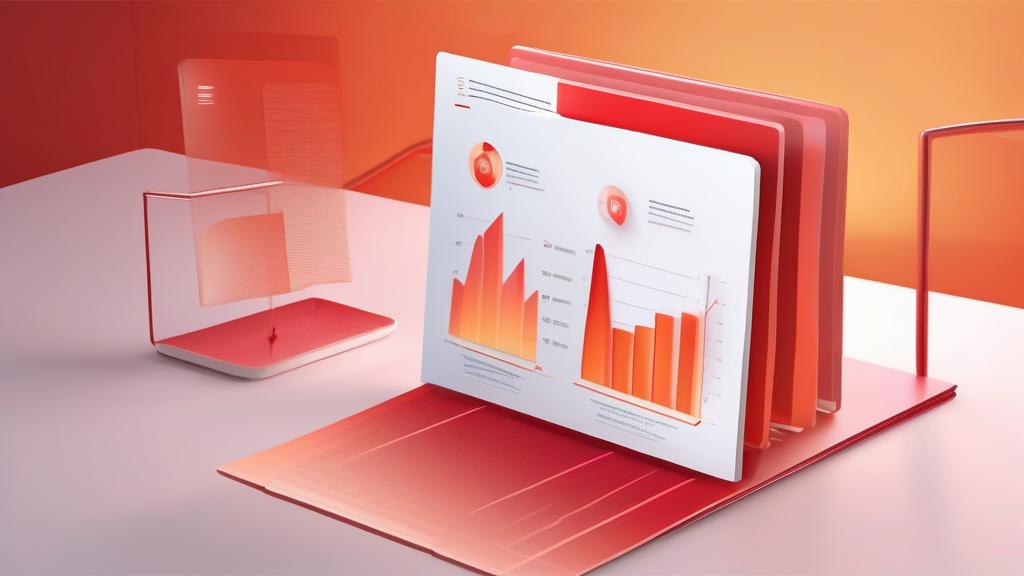
Why PDFs Get So Large - Reduce Pdf Size
High-Resolution Images
The biggest culprit. A single high-res photo can add 5-20MB to your PDF. Scanned documents are particularly problematic—scanners often default to 300+ DPI for photos embedded in each page.
Embedded Fonts
PDFs embed entire font files to ensure consistent rendering. Complex documents using multiple fonts can carry megabytes of font data.
Unoptimized Content
PDF creation tools don't always optimize output. Repeated resources, unnecessary metadata, and uncompressed streams inflate file sizes.
Multiple Layers
Design software like Illustrator or Photoshop can export PDFs with hidden layers, increasing size without visible benefit.
How PDF Compression Works - Pdf Optimization
Image Compression
The primary method. Images are re-encoded at lower quality or lower resolution:
- Quality reduction: JPEG quality dropped from 100% to 70-80%
- Resolution reduction: 300 DPI scaled to 150 DPI
- Color depth: Full color → grayscale (when appropriate)
Font Subsetting
Instead of embedding entire fonts, only the characters actually used in the document are included.
Stream Compression
PDF content streams are compressed using algorithms like Deflate (similar to ZIP).
Object Deduplication
Identical resources (like repeated logos) are stored once and referenced multiple times.
Compression Quality Levels
| Level | Image Quality | Typical Reduction | Best For |
|---|---|---|---|
| Low | Minimal compression | 10-30% | Print-quality archives |
| Medium | Good balance | 40-60% | General documents |
| High | Aggressive compression | 60-80% | Email, web viewing |
| Maximum | Visible quality loss | 80-95% | Preview, file limits |
How to Use the PKTools PDF Compressor
- Upload your PDF: Drag and drop or click to select.
- Choose quality level: Low, medium, or high compression.
- Process: Compression runs entirely in your browser.
- Download: Get your compressed PDF immediately.
When to Use Each Quality Level
Use Low Compression When:
- Document will be printed professionally
- Images contain fine details (technical diagrams, charts)
- File is already reasonably sized
- Quality is more important than size
Use Medium Compression When:
- Document is for general sharing
- Images are photos without critical fine details
- Balance between quality and size matters
- Uncertain which level to choose (start here)
Use High Compression When:
- File must meet strict size limits (email, uploads)
- Document is text-heavy with few images
- Viewing will be primarily on screen
- Quick sharing is priority over print quality
Tips for Maximum Compression
Before Compression
- Remove unnecessary pages: Delete blank or duplicate pages first
- Flatten forms: Convert fillable fields to static content
- Rasterize vectors: Complex vector graphics can be larger than images
Image Optimization
- Reduce DPI: 150 DPI is sufficient for screen viewing
- Convert to grayscale: If color isn't essential
- Crop white space: Remove unnecessary margins from scanned pages
Privacy and Security
Our PDF Compressor processes files entirely in your browser using JavaScript. This means:
- Files never leave your device
- No server uploads required
- No file size limits imposed by cloud services
- Sensitive documents remain private
Frequently Asked Questions
Will compression affect text quality?
No—text remains sharp. Compression primarily affects embedded images. Fonts and vector graphics stay crisp.
Can I compress password-protected PDFs?
Only if you know the password. Encrypted content can't be processed without decryption.
Why didn't my file compress much?
Text-only PDFs are already small. If there are no images to compress, reduction is minimal.
Is there a maximum file size?
Browser-based processing depends on your device's memory. Most devices handle 50-100MB without issues.
The Bottom Line
PDF compression is essential when file size limits block your path. Understanding what causes bloat (images, fonts, unoptimized content) helps you choose the right compression level for your needs.
Our pktools.tech PDF Compressor gives you control over quality-size tradeoffs with complete privacy—your files never leave your browser.
Try PDF Compress - PKTools Now