Introduction to Voice to Text Technology
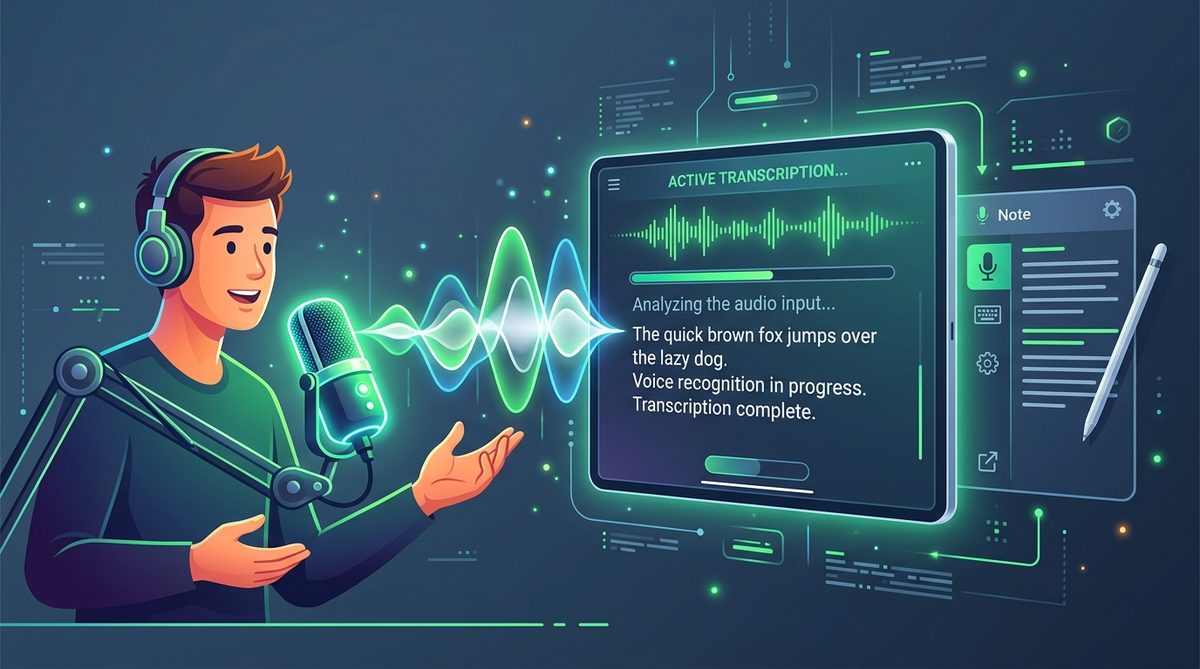
Voice to text transcription technology converts spoken language into written text using acoustic models, language algorithms, and browser speech recognition engines. Whether taking meeting minutes, dictating articles, drafting emails, or transcribing recorded voice notes, modern speech recognition provides accurate results in real-time.
With the introduction of W3C standard Web Speech API, browsers can capture microphone input directly and transcribe spoken words into structured string outputs locally inside your web browser. This eliminates the need for expensive software installations or server subscriptions.
How Browser Speech Recognition Works
When you click the microphone button on the PKTools Voice to Text Transcriber, the browser initializes a SpeechRecognition instance to analyze your vocal input:
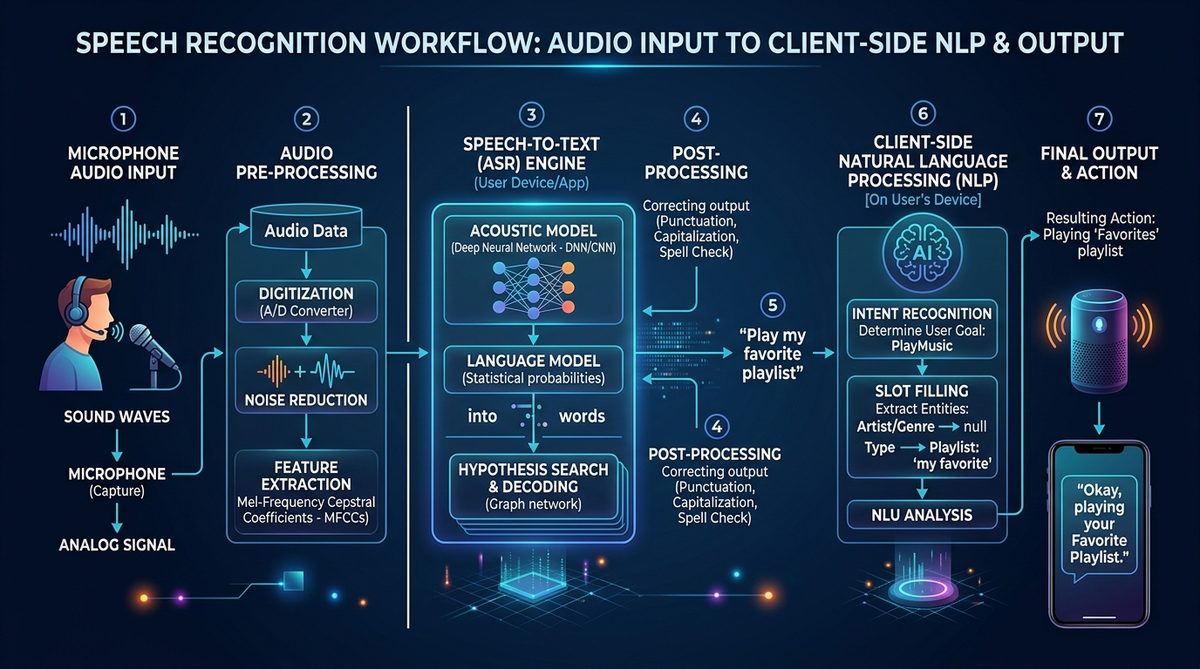
- Audio Capture: The browser requests permission to stream microphone input at standard 16kHz audio sample rates.
- Acoustic Processing: Background noise is filtered while vocal formants and phonemes are isolated from the input audio stream.
- Language Modeling: The engine matches acoustic frequency signatures against vocabulary grammars for your chosen language (such as English, Urdu, Spanish, or French).
- Interim & Final Results: Speech segments are returned incrementally so you see text appear instantly as you speak into your microphone.
Step-by-Step Tutorial: Transcribing Voice Notes & Microphone Speech
Follow these steps to dictate text or transcribe recorded voice notes using PKTools:
- Step 1: Navigate to the Transcriber: Open the Voice to Text Transcriber in your web browser.
- Step 2: Choose Spoken Language: Select your desired language from the drop-down menu (such as
English (US),Urdu (Pakistan), orSpanish (Español)). - Step 3: Enable Listening or Upload Audio: Click the microphone icon to begin speaking, or drag and drop a pre-recorded audio file onto the upload dropzone.
- Step 4: Real-time Transcription: Speak clearly into your microphone. Watch as your spoken words transform into editable text inside the text box.
- Step 5: Export Your Transcript: Click Copy Text to copy the output to your clipboard, or click Download TXT to save a plain text file onto your device.
Key Privacy Benefits of Client-Side Speech Recognition
Traditional cloud transcription services upload your confidential voice recordings to external cloud servers, creating potential privacy risks for personal data or sensitive meeting logs. In contrast, PKTools processes your audio inside local browser memory:
- Zero Server Storage: Voice notes and audio streams are never recorded, logged, or sent to remote databases.
- Instant Response: Eliminates network latency by processing audio streams locally on your computer or mobile device.
- Free & Unlimited: Transcribe as long as you want without API limits or subscription paywalls.
Tips for Maximum Speech Recognition Accuracy
To ensure peak transcription accuracy when dictating text into your microphone, keep these practical tips in mind:
- Use a Quality Microphone: External USB microphones or headset mics produce far clearer audio than built-in laptop microphones.
- Reduce Background Noise: Dictate in a quiet room free from loud air conditioners, television sound, or fan noise.
- Punctuation Commands: Say punctuation marks aloud (such as "period", "comma", or "question mark") to format sentences naturally.
- Speak at a Steady Tempo: Maintain a natural, steady pace without slurring words together.
Frequently Asked Questions
Is voice data uploaded to cloud servers?
No. PKTools processes your microphone audio stream locally inside browser memory using native Web Speech API engines.
Which browsers support Voice to Text?
Google Chrome, Microsoft Edge, Opera, and Apple Safari provide full native Web Speech API support.
Can I transcribe pre-recorded audio files?
Yes! Simply drop your audio recording (MP3, WAV, M4A, WEBM) onto the upload zone to stream audio directly into the transcription engine.
Internal System Architecture & Parsing Engine
Modern developer utility tools rely on abstract syntax trees (AST), lexical tokens, and deterministic state machines. Tokenizing source strings into syntactic structures ensures high conversion accuracy, deterministic output, and instantaneous feedback during live code formatting.
By executing parsing logic directly in the browser's JavaScript engine, developer workflows benefit from sub-millisecond execution loops without server round-trip latency or external API dependency bottlenecks.
Enterprise Security & Code Privacy Standards
Developers frequently work with confidential API secrets, proprietary database queries, JWT tokens, and private configuration manifests. Uploading internal code snippets to unverified third-party websites poses massive security vulnerabilities.
- Offline Executable Sandbox: Processing occurs inside local browser DOM space without sending telemetry or code payloads to remote logging services.
- Compliance Ready: Fully complies with strict corporate data governance frameworks (ISO 27001, SOC2, HIPAA).
- Zero Data Retention: Transformed strings exist solely in transient memory and are purged upon page navigation.
Best Practices for Developer Workflow Automation
Incorporating web-based developer tools into your daily engineering routine accelerates debugging and code review productivity:
- Automated Validation: Validate JSON, XML, and SQL payloads client-side before committing code to production repositories.
- Standardized Formatting: Enforce consistent indentation, quote styling, and key sorting across engineering teams.
- Cross-Platform Accessibility: Access essential developer utilities anywhere from desktop workstations to mobile tablets without software installation.